Switching from
Harvest.
Practical walkthrough — no marketing fluff. Most teams complete the move in under an hour. Here's exactly what to do.
The 6 steps
- 1
Export your Harvest data
In Harvest, go to Reports → Detailed time → Export CSV for the time period you want to bring over. Separately export your Clients list and Projects list from their respective screens. You'll get three CSV files.
- 2
Add a user-email column to the time CSV
Harvest's time export identifies people by name, not email. Tempough's importer matches on email so it can't map names ambiguously. Open the time CSV in a spreadsheet, add a column called user_email, and paste each person's work email next to their name. Five minutes for a small team.
- 3
Sign up and invite your team
Create your Tempough workspace and invite team members at Settings → Team. Their emails need to match the user_email column from step 2 before you import time. Tempough is free to evaluate — you don't need to pick a paid plan until you actually want to bill or run team reports.
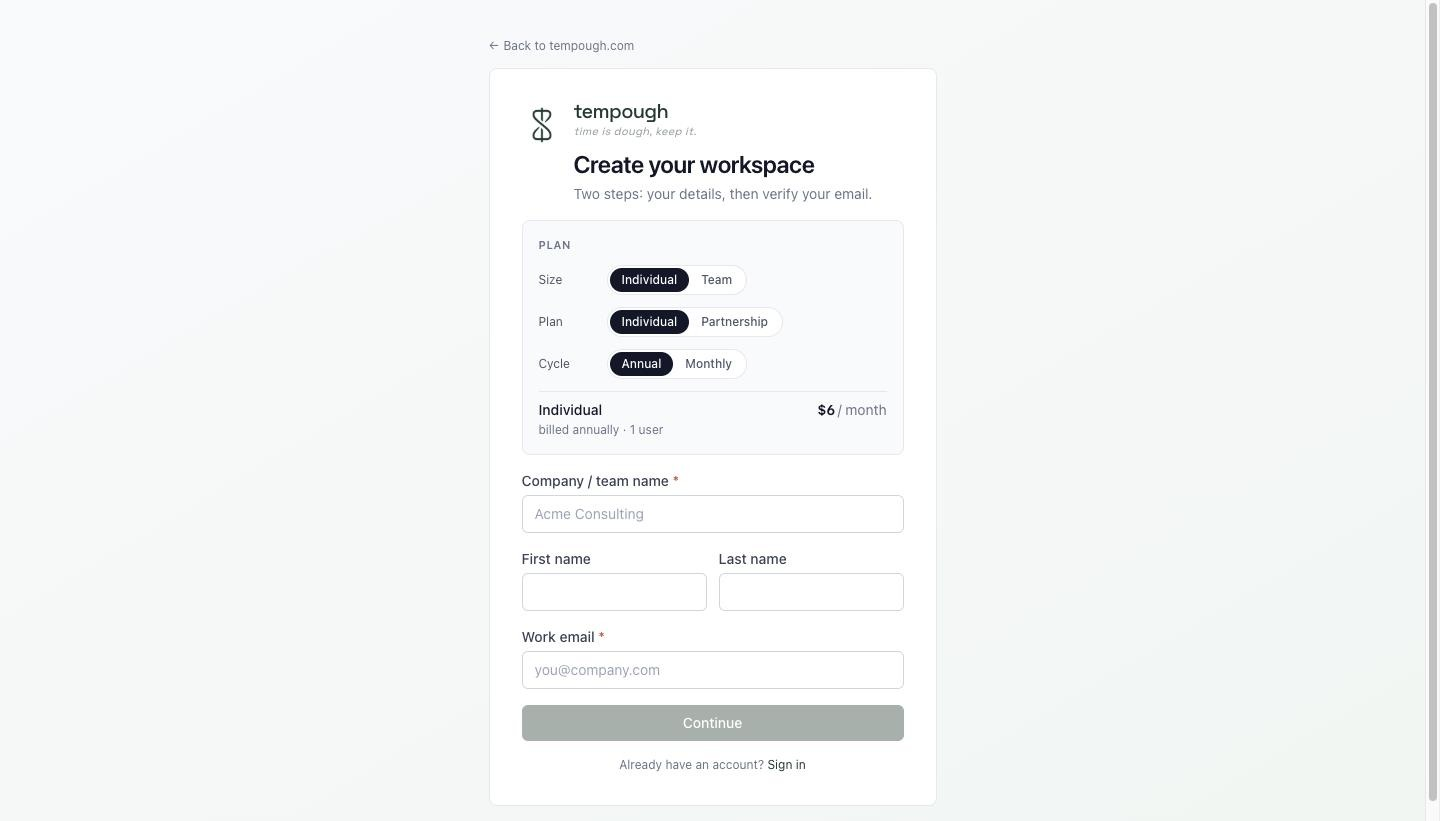
Step 3a — Create a Tempough workspace. 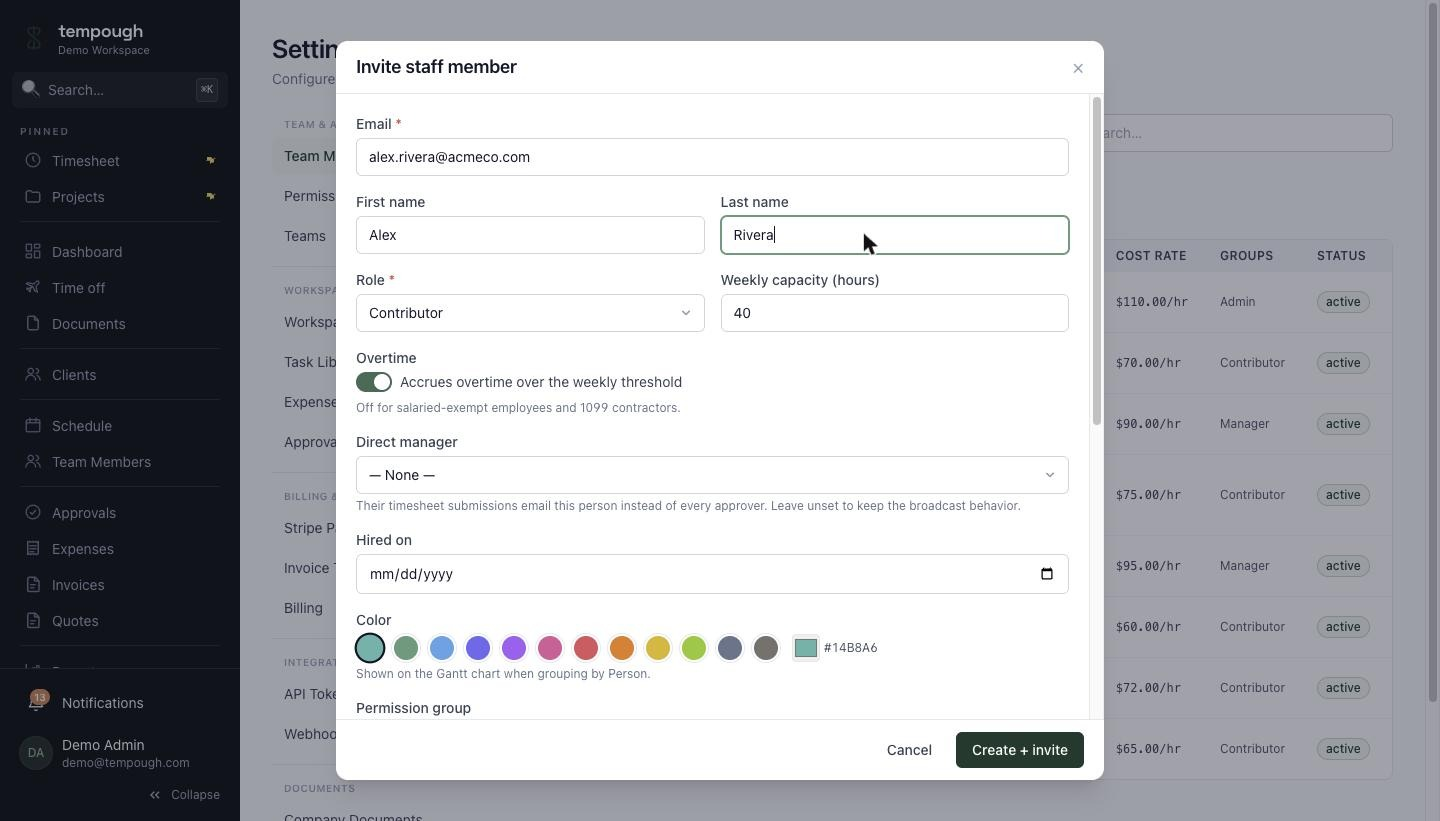
Step 3b — Invite teammates. Emails must match the user_email column. - 4
Import — clients first, then projects, then time
Go to /imports and upload in that order. Each import has a Dry-run button that runs the full import in a transaction and rolls back — you see exactly what would land before committing. Duplicates are skipped automatically, so re-uploading a fixed file is safe.
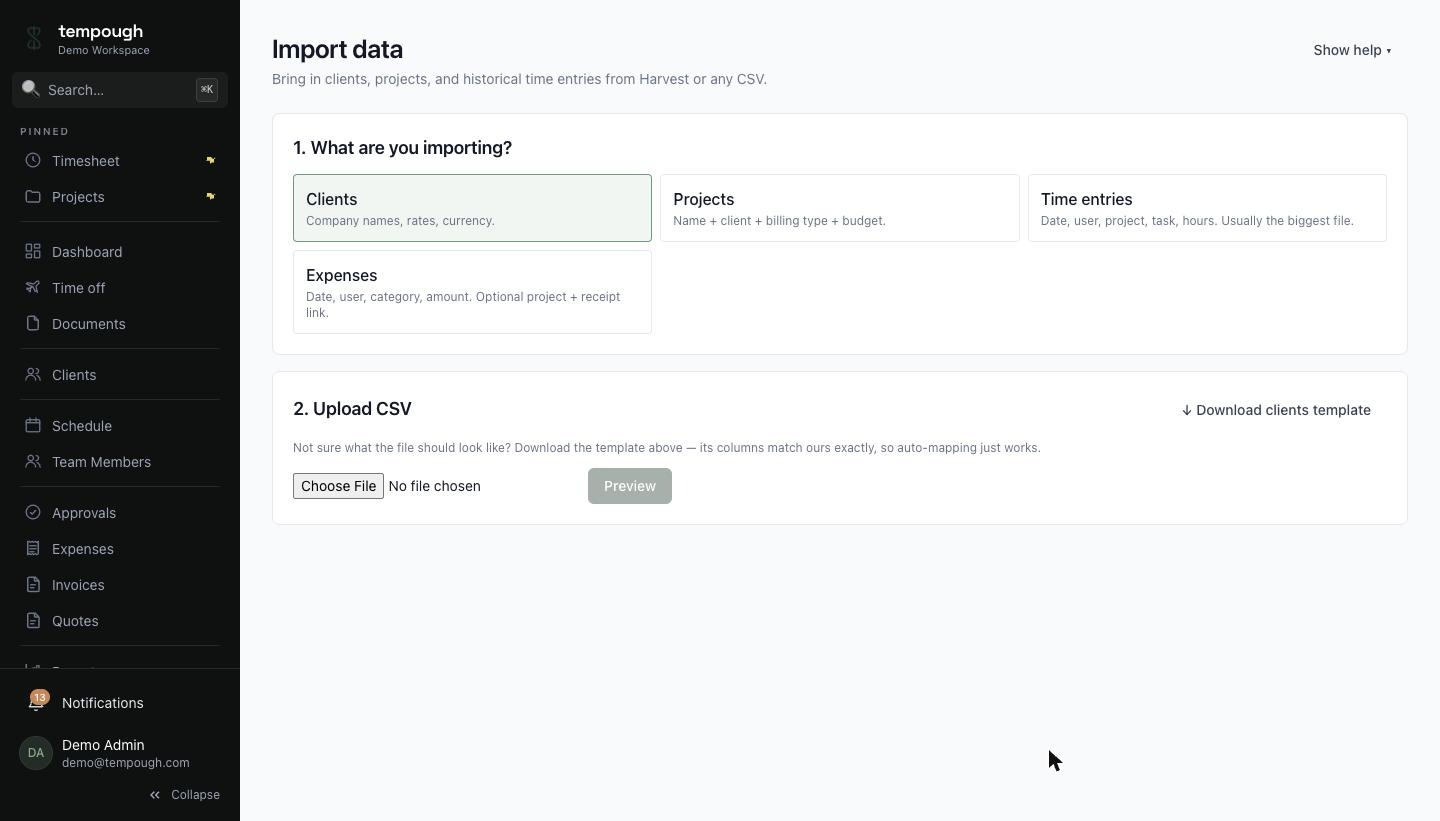
The /imports page — start with Clients, then Projects, then Time. 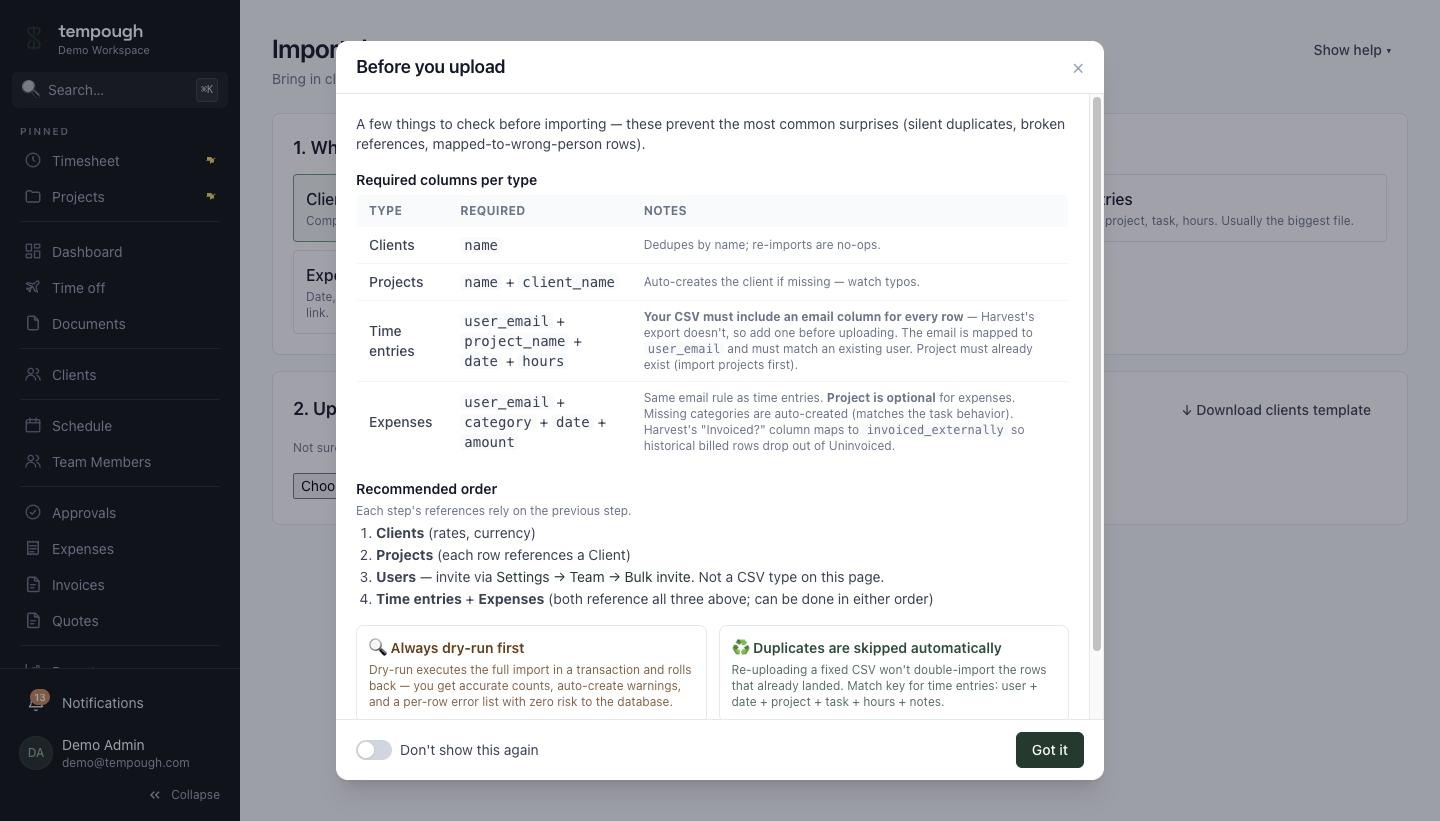
Every importer runs the upload in a transaction and rolls back so you can preview. - 5
Recreate billing rates + cost rates
Billing rates per project and cost rates per person don't come over in the CSV (Harvest doesn't export them in a structured way). Set them up at Settings → Cost Rates and on each project. This is also a chance to bring in cost rates if you didn't track them in Harvest — they unlock the Margin report.
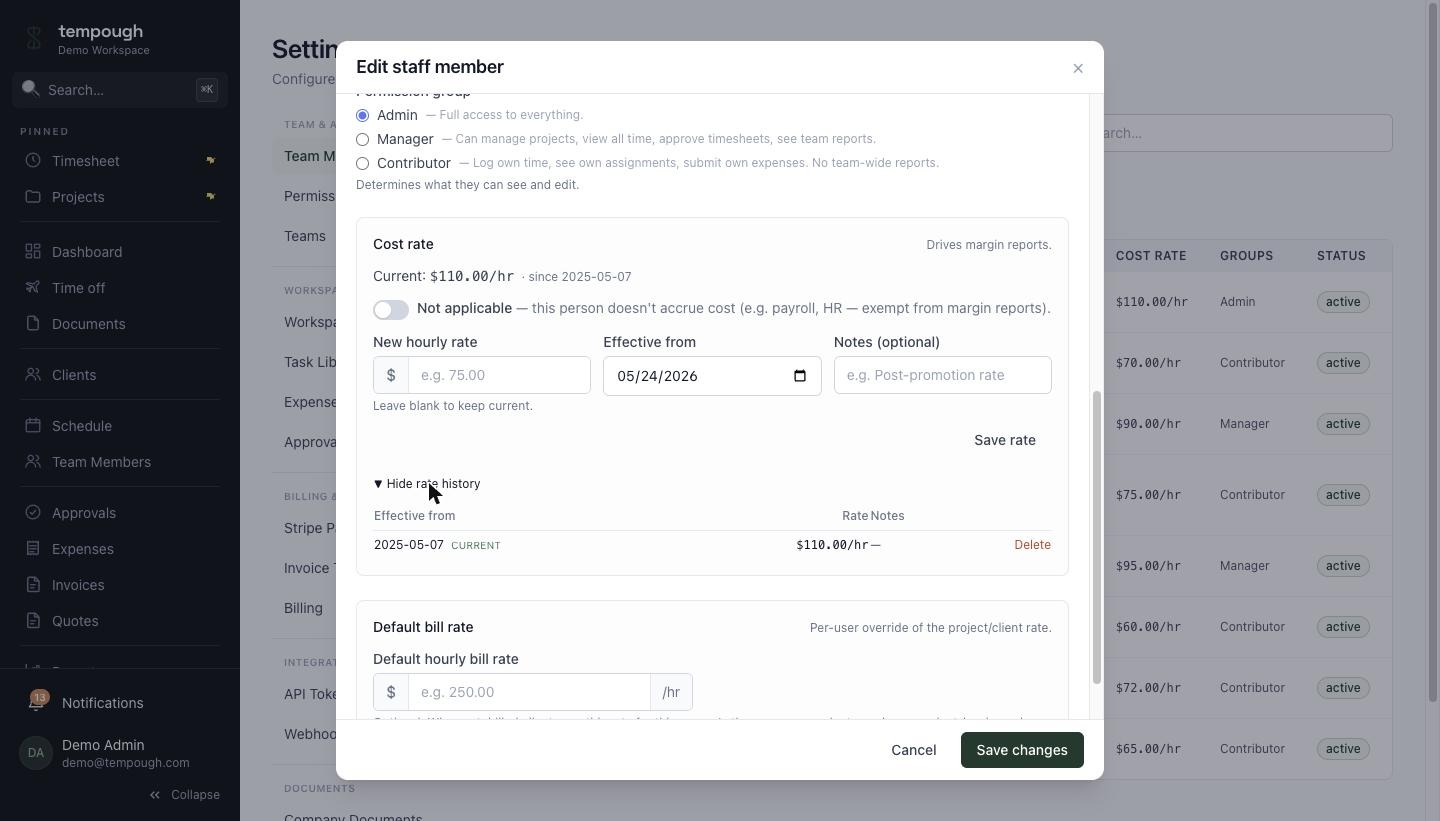
Cost rates per person — effective-dated, so historic Margin reports stay reproducible. 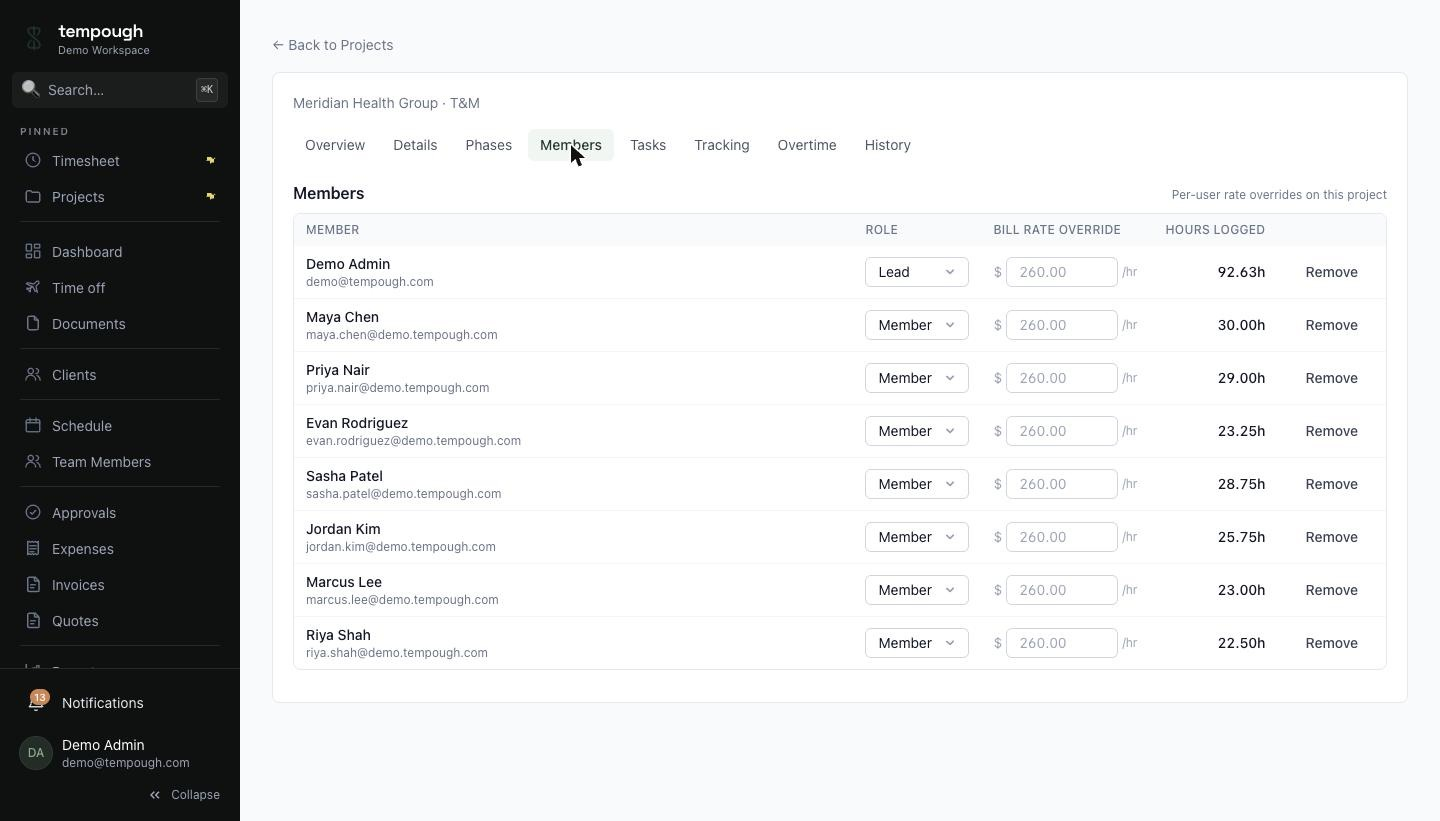
Per-project billing rates — overrides on top of the workspace default. - 6
Set up forecasting (optional but recommended)
If you were paying for Harvest Forecast separately, you can rebuild your assignments in Schedule. Drag-to-create, multi-week stretches, capacity overrides — same shape as Harvest Forecast, faster to use, no separate bill.
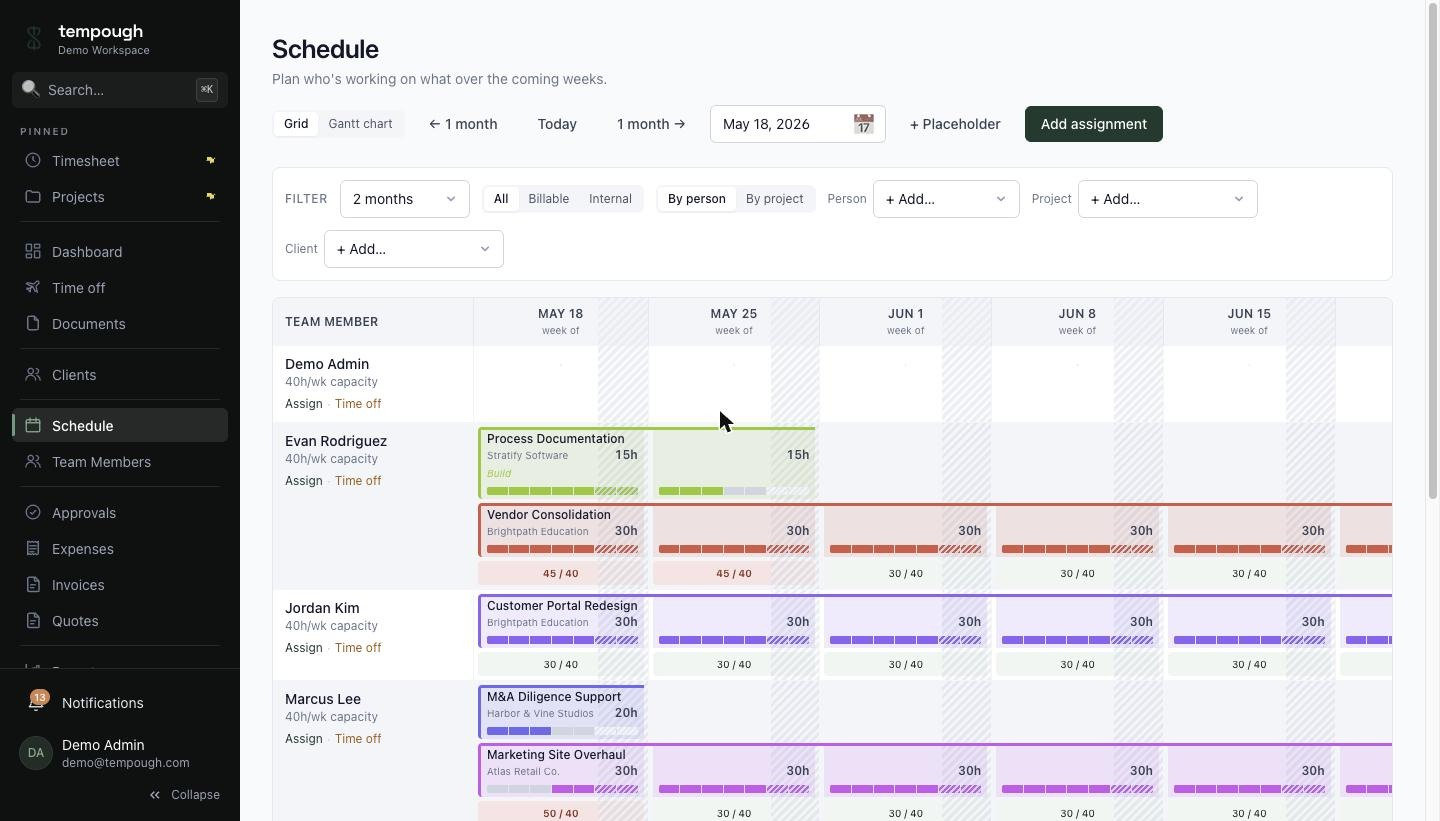
Schedule — drag-to-create assignments, capacity overrides, time-off-aware.
Day-one translation
What was called what in Harvest, and where to find it in Tempough.
In Harvest | In Tempough |
|---|---|
| Timer | Timer (browser + keyboard-first) |
| Timesheet | Weekly timesheet grid |
| Projects → Tasks | Projects → Phases → Tasks |
| Estimates | Quotes (Partnership+) — convert to invoice on accept |
| Invoices | Invoices (Stripe payment link built in) |
| Reports → Time / Expense / Project | Reports (Standard tabs always on; deeper tabs on paid plans) |
| Approvals | Approvals (Team+) — with org-chart routing |
| Harvest Forecast (separate $) | Schedule (Team+) — same plan, same login |
| Expenses + receipts | Expenses (Individual+) — reports + reimbursement |
| QuickBooks sync | QuickBooks-formatted CSV export |
| Integrations via Zapier | Webhooks + REST API + MCP for Claude/Cursor/Zed (Partnership+) — direct, not via Zapier |
| (nothing equivalent) | Margin (P&L) reports, overtime-aware cost math, org chart, document distribution, client portal |
Migration FAQ
The case for switching →
Why teams move off Harvest.
Tempough vs Harvest →
Side-by-side feature comparison.
Ready when you are.
Create a workspace, import your Harvest data, invite your team.